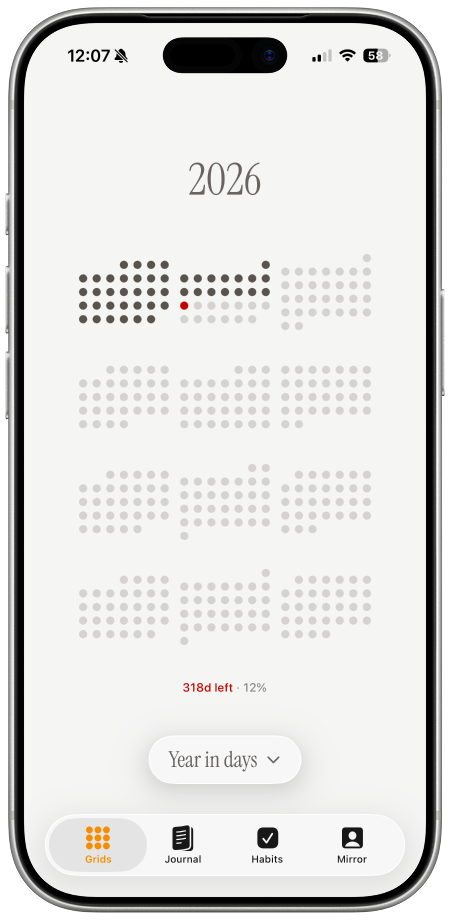
A daily countdown wallpaper on Android can show days remaining, days completed, or year progress every time you open your phone. The challenge is keeping the image current. A normal wallpaper stays static; a useful day counter needs to fetch a new image and apply it each day.
One Dot creates the current wallpaper image. MacroDroid handles the Android automation. If you are still choosing what to count, start with the broader countdown wallpaper and day counter guide.
What you need
- an Android phone;
- a one dot wallpaper configuration;
- MacroDroid installed on your device;
- permission for MacroDroid to change the wallpaper and use the network.
The automation uses your private wallpaper URL to request a fresh image. That image reflects the current date, so the filled dots and remaining-day count advance without manual redesign.
1. Create your day counter design
Open the one dot wallpaper generator. Choose the period you want to visualize:
- year in days;
- days until an event;
- days since a starting date;
- life in weeks;
- a shorter personal challenge.
Use strong contrast between completed and future days. Android launchers can crop wallpapers differently, so keep the important grid and labels near the center of the preview.
2. Save your wallpaper URL
After saving the design, one dot provides the URL used to generate the latest image. Treat this URL as private: anyone with it may be able to request your wallpaper configuration.
Copy it exactly. MacroDroid will use it in the next step.
3. Import the MacroDroid template
Download the one dot MacroDroid template from the setup flow, then open it with MacroDroid. Review the macro before enabling it.
The macro performs three actions:
- runs at your selected time;
- downloads the current wallpaper image from your URL;
- sets that image as the Android wallpaper.
Paste your unique URL into the download action when prompted.
4. Grant Android permissions
Android versions and manufacturers handle background work differently. MacroDroid may request permission to:
- access the internet;
- save the downloaded image;
- set the system wallpaper;
- run scheduled work in the background.
Allow only the permissions required by the macro. If your phone has aggressive battery optimization, exclude MacroDroid from sleep restrictions so the daily trigger can run reliably.
5. Test before waiting a day
Run the macro manually. Confirm that:
- the image downloads successfully;
- the wallpaper changes;
- the grid is positioned correctly after Android crops it;
- lock screen and home screen use the intended image.
If the preview looks right but the applied wallpaper is cropped, return to one dot and move the design toward the center or add more background space.
Common Android problems
Wallpaper did not update
Open MacroDroid and check whether the macro ran. Battery optimization is the most common cause of missed scheduled actions.
Download failed
Check the wallpaper URL and make sure the phone had a network connection at the scheduled time.
Only the home screen changed
Wallpaper behavior varies by Android manufacturer. Review the set-wallpaper action and choose lock screen, home screen, or both when your device exposes those options.
The image is zoomed
Some launchers zoom or scroll wallpapers. Adjust the one dot layout for your device rather than relying on the raw preview dimensions.
Create the automation
Start with the wallpaper generator, then follow the Android option in the setup guide. Once enabled, your countdown advances by one day without manual image changes.