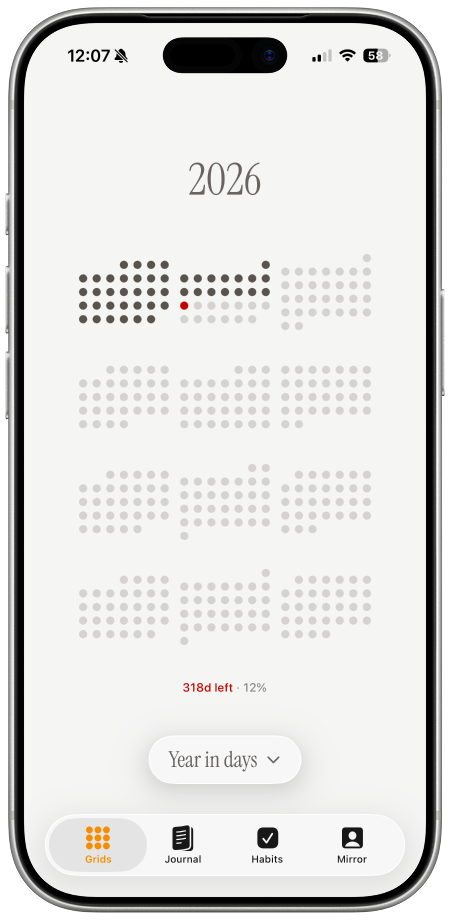
A countdown wallpaper puts the number that matters where you will see it: on your lock screen. Instead of opening an app, checking a widget, or doing date math, you can glance at your phone and see how much time has passed and how many days remain.
Most countdowns show one large number. A visual day counter can do more. It can represent every day as a dot, fill the days that have passed, highlight today, and leave future days open. You see both the count and the shape of the time period.
What is a countdown wallpaper?
A countdown wallpaper is a phone background that tracks progress toward a date. Common examples include:
- days left in the year;
- a birthday, wedding, trip, or graduation countdown;
- progress through a 30-day challenge;
- days since you started a habit or project;
- weeks or days across a longer life calendar.
A day counter wallpaper can count down to a future date or count up from a start date. Both use the same idea: make abstract time visible during an ordinary part of your day.
Why use dots instead of one big number?
“318 days left” is precise, but a grid gives that number context. Filled dots show the path behind you. Empty dots show the room ahead. A highlighted dot keeps today from disappearing between them.
This format works well because it is:
- glanceable: no chart-reading or mental arithmetic;
- quiet: useful information without another notification;
- personal: colors, layout, date range, and labels can match your goal;
- persistent: your lock screen becomes a gentle daily cue.
The goal is not to create pressure. A good countdown wallpaper should make time clearer, not make every day feel like a deadline.
Countdown wallpaper vs. countdown widget
A widget is interactive and can show live data, but it takes space and may not fit every lock-screen layout. A wallpaper gives you a larger visual canvas and stays behind the clock and controls.
The tradeoff: an image does not update itself. It needs an automation that requests a fresh wallpaper and applies it on a schedule. One Dot uses Apple Shortcuts on iPhone and a MacroDroid template on Android to handle that daily refresh. See the dedicated iPhone live calendar wallpaper guide or Android countdown wallpaper guide for platform-specific instructions.
How to make a day counter wallpaper
1. Choose what you are counting
Pick a period with a clear start and end. A year in days is easy to understand. A personal goal may work better with a custom start date and target date.
Ask one question before designing it: do you want to focus on time remaining or progress completed? That choice should determine the label and visual emphasis.
2. Build the visual
Use the one dot wallpaper generator to choose a grid, colors, typography, and the information displayed. Keep enough contrast for the image to remain readable behind lock-screen text.
For a calm design, use one neutral color for completed days, a lighter shade for future days, and one accent for today. More colors rarely make the counter easier to understand.
3. Automate the daily update
On iPhone, Apple Shortcuts can fetch your personalized wallpaper each morning and set it as the current Photo lock screen. On Android, the same daily update can run through MacroDroid.
Follow the wallpaper setup guide after creating your design. Your wallpaper will then advance by one dot each day without manual editing.
Good ways to use a countdown wallpaper
Year progress
Represent January 1 through December 31. This gives each day equal visual weight and makes seasonal progress easy to feel. The 365-dot year progress wallpaper guide explores this layout in more detail.
Event countdown
Count the days until travel, a launch, an exam, or another fixed event. Keep the date visible so the page remains understandable even when you return to it after a busy week.
Habit or challenge counter
Use a 30-, 60-, or 100-day range. Treat the wallpaper as a reminder of the period, not proof that every day was perfect. If you need detailed habit completion data, pair it with a journal or habit tracker.
Days since a meaningful start
Count upward from the day you began a project, moved somewhere new, or made an important change. A count-up wallpaper celebrates continuity rather than urgency.
Make the counter useful, not stressful
Start with one time horizon. Putting a yearly countdown, lifetime grid, habit streak, and event date on one screen creates noise. Choose the view that supports your current priority.
Then let it fade into the background. The best day counter wallpaper does not demand attention. It gives you a small moment of orientation whenever you naturally check your phone.
Create yours
Create a custom countdown wallpaper, then connect the daily automation in the setup guide. Choose a date range, make each day visible, and let your lock screen keep the count.