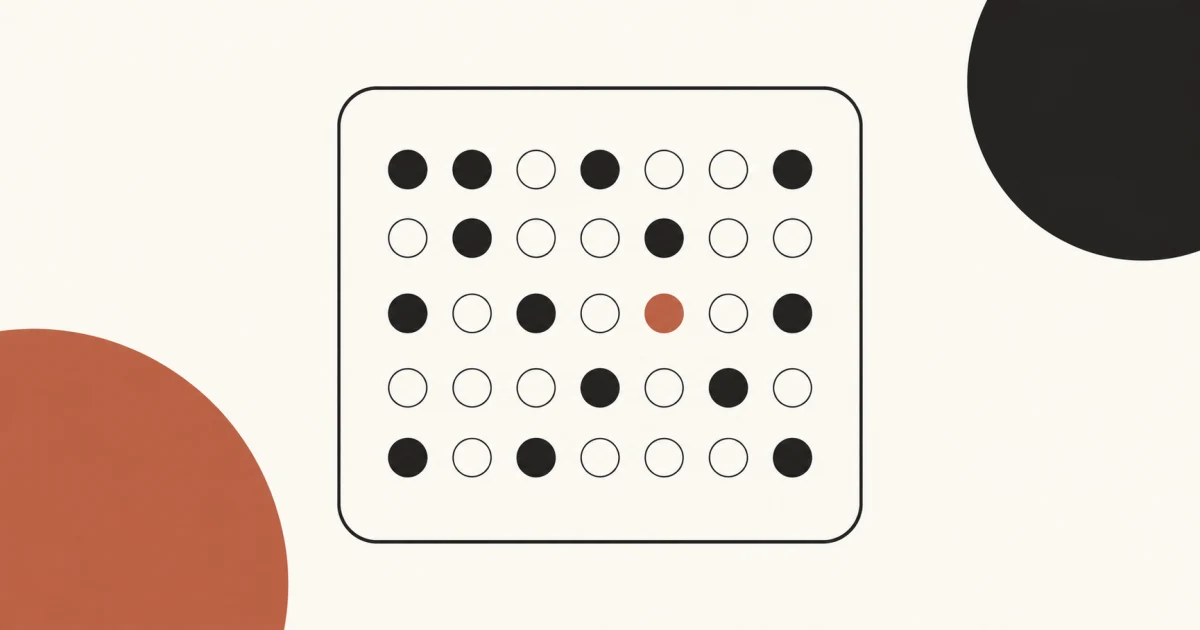
A habit tracker wallpaper gives your lock screen a visual record of selected habits. In One Dot, create a once-a-day habit or a count-based heatmap habit, record check-ins in the app, then choose one, two, or four habits for the wallpaper layout. The resulting image shows your stored history at a glance. It is a display, not a button, so checking off a habit still happens in the app or an interactive widget.
This view is about habit records, not generic time counting. If you want a wider time perspective instead, the life in weeks wallpaper guide explains that separate format.
Key takeaways
- Use a once-a-day habit for a simple completed or not-completed record.
- Use a heatmap habit when the number of check-ins in a day matters.
- A wallpaper layout can show one, two, or four selected habits.
- The wallpaper is static between refreshes and cannot receive taps.
- Optional reminders, app check-ins, and interactive widgets have different jobs.
What does a habit tracker wallpaper show?
A useful habit wallpaper shows a compact history, not a promise about future behavior. Each selected habit gets a card based on check-ins already saved in the app. That makes the lock screen a visual reference for what was recorded, while current and best streaks and the longer history remain available in the habit views.
Choose the habit type before you begin:
- Once a day suits a yes or no event, such as whether you completed a short daily practice.
- Heatmap suits an activity you may record more than once in a day. A larger daily count can be represented with stronger intensity.
Keep the wording factual and short. A label such as “Read” or “Stretch” is easier to scan than a sentence. Avoid putting goals, medical claims, or motivational guarantees into the image. The wallpaper can report the check-ins you made, but it cannot prove quality, effort, or a result.
How to make the lock-screen view useful
Start with one habit if you want the largest card. Use the two-card layout when two records belong together, or the four-card layout when comparison matters more than detail. More cards make each history smaller, so the best layout depends on the density you can read after the iPhone clock and notifications are present. The two- and four-card layouts and the interactive habit widget are One Dot Premium features; the single-card layout is the starting option.
Create the habits in the app, choose the type for each one, and add a short name. Record a few real check-ins so the history represents actual entries rather than a decorative pattern. Then open the Habits wallpaper settings and select the layout and the habits to include.
Use the app preview to establish contrast, but inspect the final result on the real lock screen. Apple’s iPhone wallpaper guide explains how to add and switch wallpapers. Keep the main cards away from the clock, widgets, and bottom controls, and choose colors that remain distinguishable in the final crop.
The One Dot setup guide covers the product-specific connection between a saved wallpaper and the iPhone workflow. Run the refresh manually once before adding a schedule. That separates design or permission problems from automation problems.
Wallpaper, widget, or days-since counter?
These views solve different reader tasks. The wallpaper offers a broad visual history, the widget offers an interactive control, and a days-since counter measures elapsed calendar time from one date.
| View | Best for | Can log a habit? | How it changes |
|---|---|---|---|
| Habit wallpaper | Seeing one, two, or four habit histories | No | New static image after a refresh |
| Interactive widget | Recording a selected habit from Home Screen or Lock Screen | Yes | Updates through the widget and app data |
| Days-since counter | Counting calendar days from one milestone | No | Advances with the chosen date logic |
Do not use the wallpaper as an input surface. A wallpaper is an image, so tapping a dot does not create a check-in. If quick entry matters, configure the interactive habit widget and select the habit you intend to log. Open the app when you need to add a check-in for an earlier date, compare current and best streaks, or review individual days.
Reminders and privacy boundaries
Daily reminders are optional and belong to each habit. Turn one on only when you want a notification for that record. A reminder does not complete the habit, and the absence of a reminder does not prevent manual check-ins.
Habit titles, check-ins, and journal content are described as locally stored in the app privacy policy. That is a narrower claim than saying every kind of app data stays on the phone. Read the policy for the boundaries around analytics, diagnostics, optional integrations, and other services before deciding what to record.
This division keeps the setup easy to reason about:
- the app stores the habit record and can add an earlier check-in;
- the widget can send a check-in for a selected habit;
- the wallpaper renders selected history into an image;
- the Shortcuts automation can request and apply a refreshed image.
Keep daily refresh automation simple
The wallpaper does not update itself. It stays static until you create and run a user-controlled Shortcuts automation. First confirm that a manual run generates and applies the expected image. Then add a Time of Day personal automation and choose a daily schedule that fits when you want the display refreshed.
Apple documents how to add a personal automation and how event triggers work. The localized iPhone wallpaper automation guide focuses on this workflow and common failures. Keep the automation section here short because it supports the habit display rather than defining it.
A morning refresh can make recent check-ins visible in the day’s image, but it is not continuous syncing. If you log a habit after the automation runs, the current wallpaper may not show that entry until the next refresh. Use the app or widget when you need the latest interactive state.
Frequently asked questions
Can the wallpaper itself log or check off a habit?
No. The wallpaper is a static image and cannot receive habit input. Log the check-in in the app or use an interactive habit widget. The next wallpaper refresh can then render the saved record.
Does the habit wallpaper update itself?
Only after you configure a Shortcuts automation. Between automation runs, the image remains static. A manual refresh is also useful after adding a check-in for an earlier date or changing which habits appear.
Choose a calm record, not a crowded dashboard
Start with one clear habit, verify the check-in history, and test the final crop. Add more cards only when two or four histories remain readable. For more related examples, browse the One Dot blog without turning this habit page into a generic calendar or countdown guide.
Download One Dot from the App Store to create a habit tracker wallpaper and choose the records you want on your lock screen.