An iPhone wallpaper shortcut chooses or fetches an image, then sets it as your wallpaper. A Time of Day automation runs that shortcut every day. You can build the photo version with Apple's Shortcuts app, without a One Dot account. For a calendar or countdown that changes with the date, use the One Dot option below.
Key takeaways
- For rotating existing photos, try built-in Photo Shuffle first.
- For a custom workflow, select one photo and pass it to the wallpaper action in Shortcuts.
- Test manually before scheduling a daily Time of Day trigger. On iOS 17–26, choose Run Immediately.
- One Dot's web shortcut fetches a newly generated calendar image; it needs a saved web configuration and an eligible web plan.
- Wallpaper stays a static image between updates. This does not create a continuously animated Live Photo.
Choose photos or a changing calendar
Use Photo Shuffle if you only want pictures from your library to rotate. Apple's wallpaper guide explains how to add a Photo Shuffle wallpaper. You can choose a shuffle frequency while setting it up.
Use a shortcut when you want control over which image is selected or need to fetch a fresh image. A year-progress calendar, countdown, or life-in-weeks grid has content that changes as time passes, rather than simply rotating a photo collection.
Make a wallpaper shortcut with your own photos
The steps below use the Shortcuts app and your own photo library. They do not require the One Dot service.
- In Photos, create an album containing the images you want to use. Start with a few photos that fit your screen.
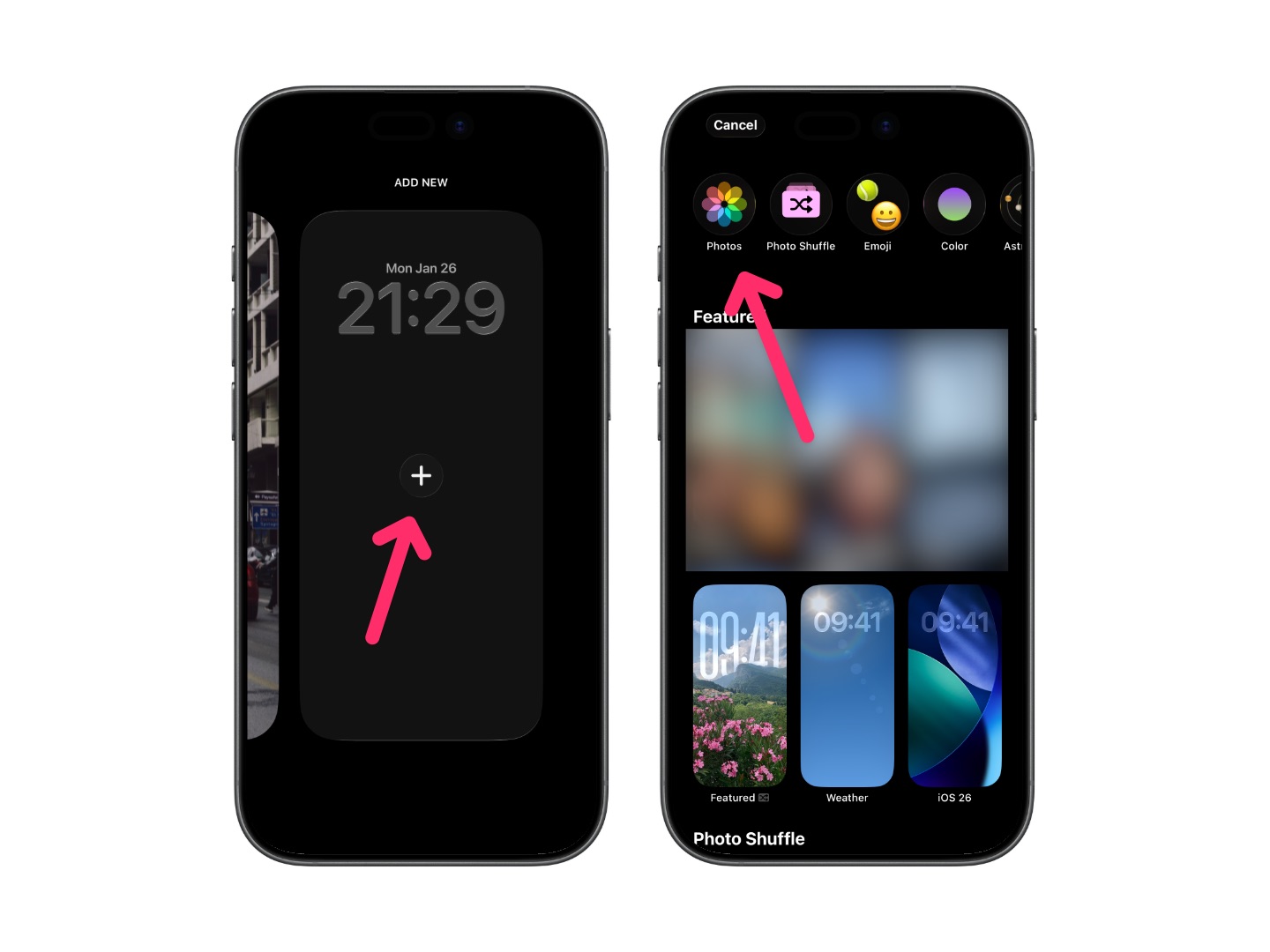
- In Settings → Wallpaper → Add New Wallpaper, choose Photos and create a photo-based wallpaper. Make it active for the first test.
- Open Shortcuts, create a new shortcut, and give it a name such as Daily Wallpaper. Apple's custom-shortcut guide explains how to add actions.
- Add Find Photos. Filter it to your album, set the sort order to Random, and enable Limit with a value of 1. This gives the next action one image rather than a list. Apple’s Find and Filter actions reference explains album filters and the Limit control.
- Search for the wallpaper action, usually named Set Wallpaper Photo, and add it after Find Photos. Use the found photo as its input, and choose the wallpaper and screen you intend to change. Expand the action's options; turn off Show Preview if it is available and you want the scheduled run to finish without an editing screen.
- Run the shortcut manually. Allow the requested Photos access, then lock the phone and check the result.
Action labels and available options depend on your iOS version and language. The screenshots and Run Immediately steps below show the iOS 17–26 flow. The next section also covers Apple’s iOS 27 controls. If the action prompts for an image or target every time, choose those values in the shortcut before scheduling it.
Schedule the shortcut every day
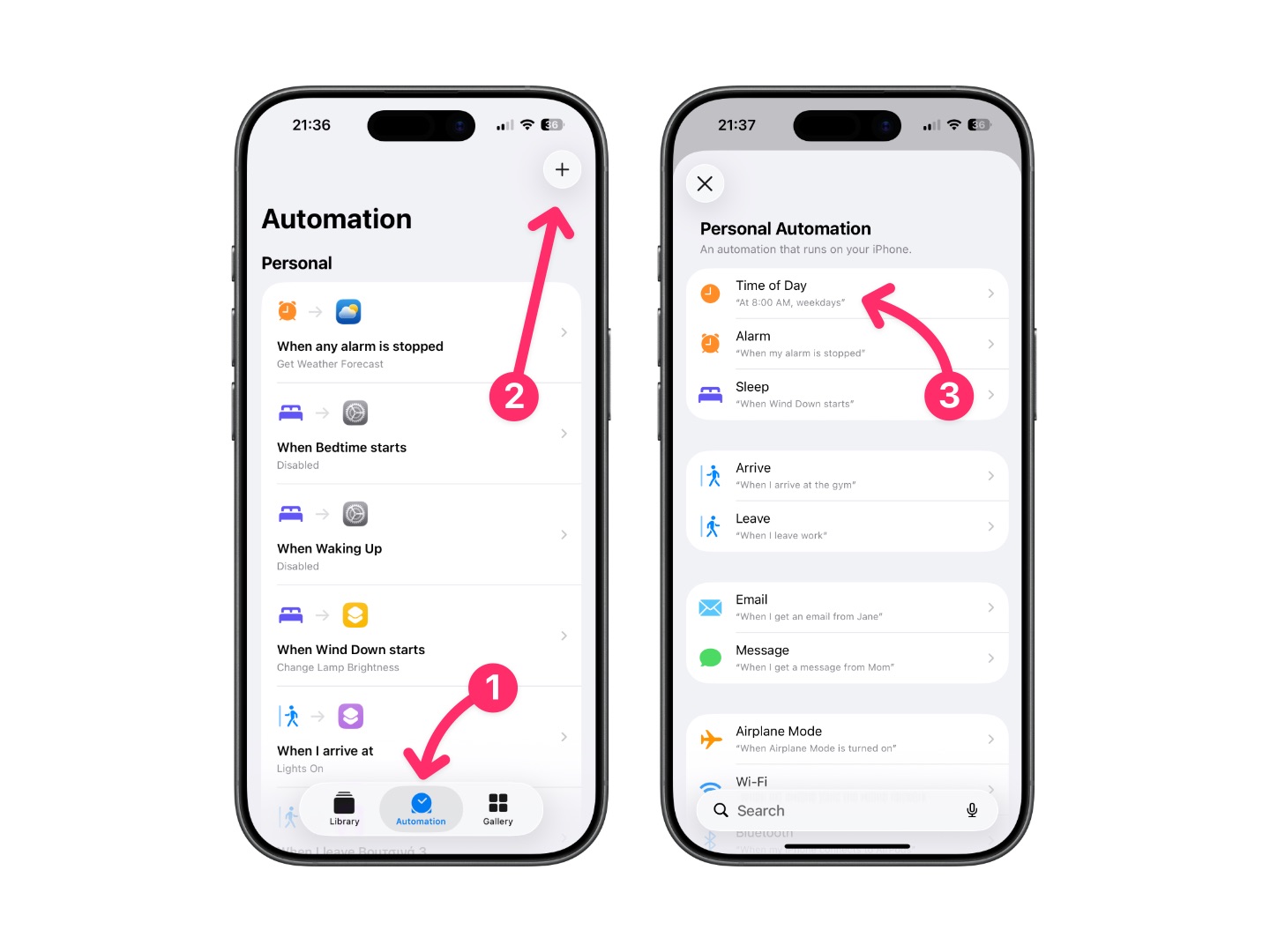
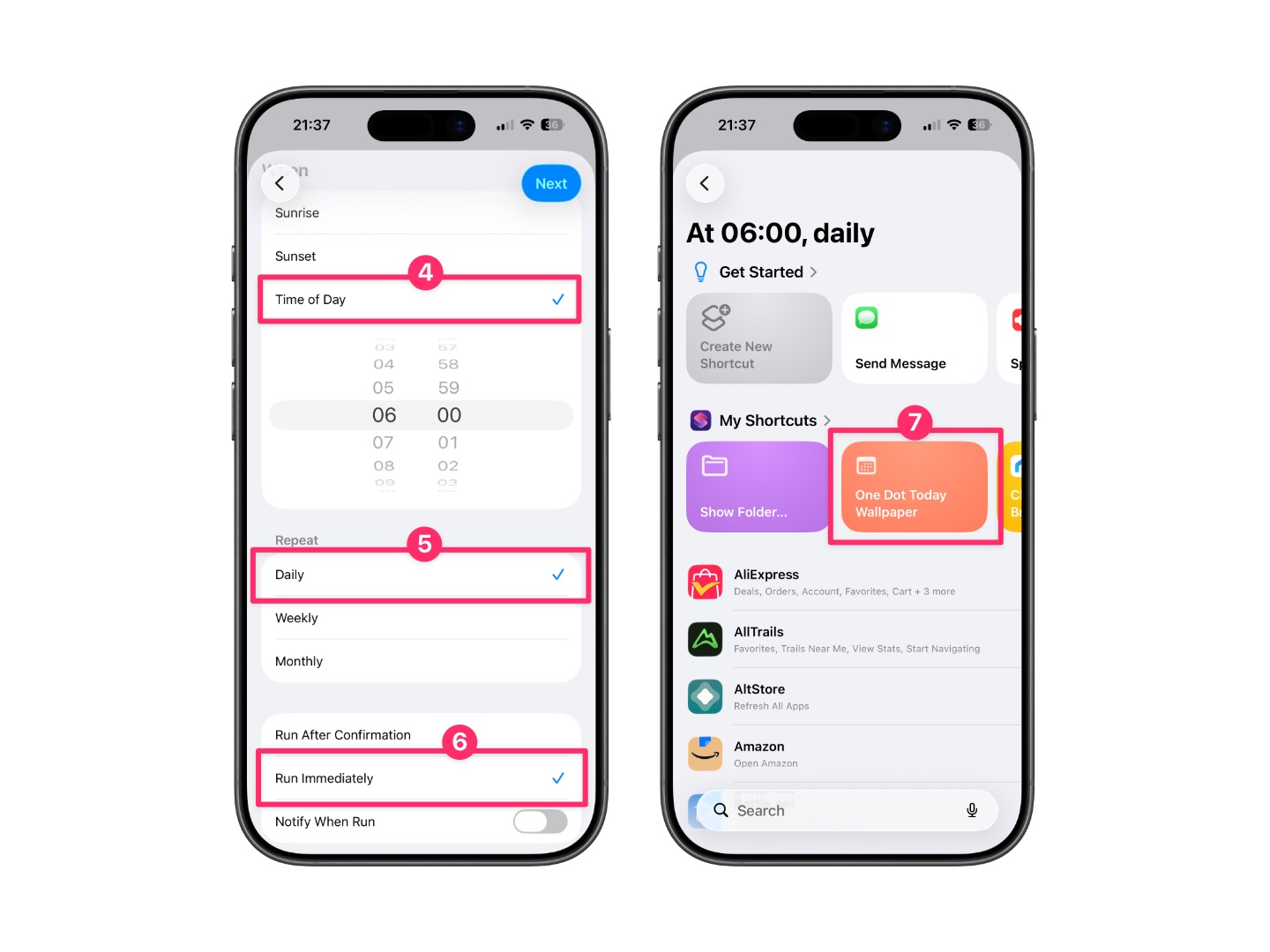
On iOS 17–26: open Shortcuts → Automation, add an automation, and select Time of Day. Choose a time, repeat Daily, select Run Immediately, then choose the shortcut you tested. Apple's automation guide and event-trigger reference explain the scheduling controls.
On iOS 27: Apple’s current automation guide starts from the shortcut: open it, tap Edit → Automation, then add a Time of Day trigger. To allow a supported automation to run while locked, open the shortcut’s Edit → Info → Privacy controls and enable Allow Running When Locked. Individual actions can still require their own permissions. Follow the controls for your installed version rather than looking for a button shown only in the older screenshots.
The test has two parts: first run the shortcut by hand, then temporarily schedule it a few minutes ahead. Confirm the image changes at the scheduled time before choosing your normal morning schedule.
Visual walkthrough: photo wallpaper, trigger, daily run
These screenshots come from the existing One Dot setup guide. They show the same Photo wallpaper and scheduling controls used above; the final shortcut tile is the One Dot web shortcut. Select Daily Wallpaper there if you built the personal-photo version. These are iOS 26 setup screenshots; on iOS 27, use the current-version path above.
1. Add a Photo lock screen
2. Choose the Time of Day trigger
3. Select Daily, Run Immediately, and your shortcut
Use One Dot for a date-aware wallpaper
One Dot generates an image for the current date. Its web workflow differs from the personal-photo shortcut: instead of Find Photos, the supplied shortcut requests the current image using your saved wallpaper token. It needs a network connection when it runs.
- Create a design in the web wallpaper generator. Check the clock area and crop before saving it.
- Save the web configuration. Scheduled generation requires an eligible web plan; downloading a single image and generating a new image daily are different features.
- Open the iPhone web setup guide, install its shortcut, and paste your private web token when prompted. Do not share the token or include it in screenshots.
- Run that shortcut manually, approve the required permissions, then schedule it with the daily automation above.
If you use the One Dot iPhone app, follow the app's own setup flow. The web token instructions here belong to the web service; an App Store purchase does not automatically establish a web subscription. The lock-screen calendar guide helps you choose what the image should show.
Fix a wallpaper shortcut that does not run
| What happens | What to check |
|---|---|
| Photo shortcut asks you to pick an image | Find Photos should return one image from the chosen album; check Limit and the wallpaper action's input. |
| Manual run works but scheduled run waits | Check that the trigger is enabled. On iOS 17–26 choose Run Immediately; on iOS 27 check Allow Running When Locked. Test manually to handle permissions. |
| A wallpaper editor opens | Check Show Preview in the wallpaper action if that option is available. |
| The wrong lock screen changes | Check the wallpaper selected by the action and any active Focus. Make the intended Photo wallpaper active for testing. |
| One Dot web image stays old | Check network access, the saved web configuration, token, and plan, then run the shortcut manually. |
| Image changes but looks cropped | Adjust the source image or wallpaper crop and keep the grid away from the clock and controls. |
If you use several Focus modes, check the Lock Screen linked to each one. The advanced web shortcut lets you choose a specific lock screen for the One Dot web workflow. Personal automations are device-specific; after changing phones, verify the schedule and permissions again.
Create your daily wallpaper
For a personal photo collection, finish the shortcut and scheduled test above. For a calendar designed on your phone, get One Dot for iPhone. Prefer a browser workflow? Create a web wallpaper, then connect the saved design using the web setup guide.
Sources and editorial review
Published by One Dot. This guide was reviewed against Apple’s Shortcuts and wallpaper documentation on October 14, 2026. Screenshots are from our existing iOS 26 web setup guide; they are not screenshots of the iOS 27 interface. For help with the One Dot workflow, contact One Dot support.