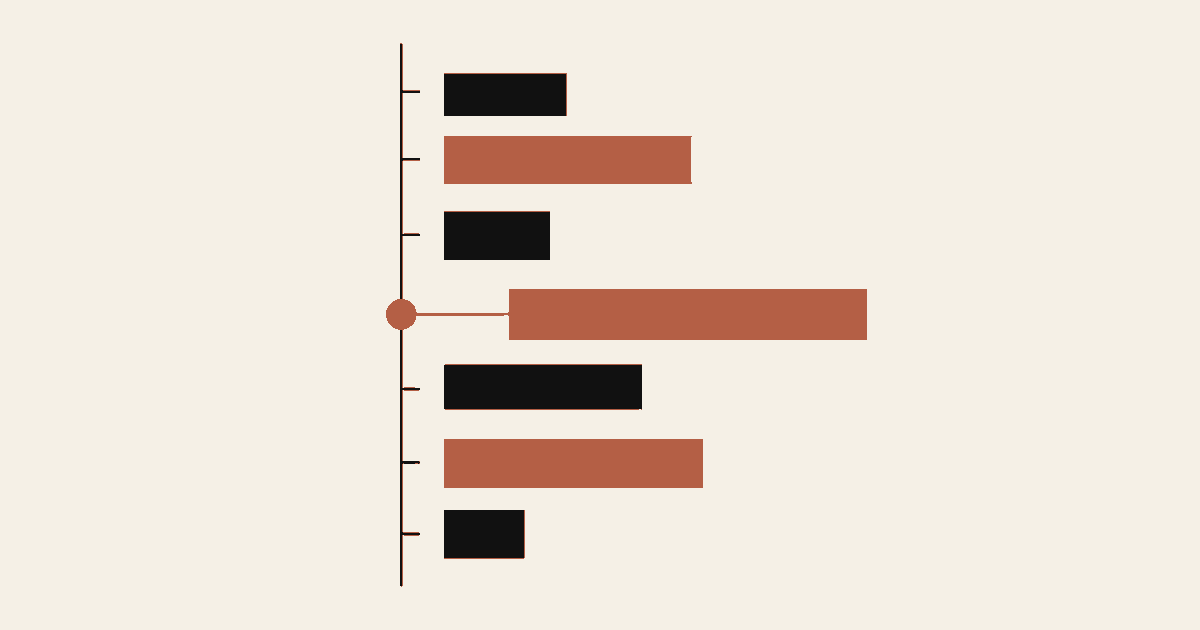
आज का शेड्यूल लॉक स्क्रीन वॉलपेपर आपके iPhone में पहले से मौजूद Calendar events को एक static image में बदलता है। One Dot का Agenda mode आपकी अनुमति वाले calendars को पढ़ता है, all-day और time वाले events को क्रम में रखता है, और उन्हें list, week card, timeline, गोल sectograph या monthly layout में दिखा सकता है। इससे Calendar खोले बिना दिन का plan देखा जा सकता है।
यह guide खास तौर पर समय वाले appointments पर केंद्रित है। पूरे auto-updating calendar use case के लिए अंग्रेज़ी में उपलब्ध live calendar wallpaper guide देखें। Agenda और task list भी अलग हैं: event Calendar में समय घेरता है, जबकि reminder किसी action को दिखाता है और उसमें समय होना जरूरी नहीं।
मुख्य बातें
- Agenda mode केवल आपकी अनुमति के बाद चुने गए calendars को पढ़ता है।
- यह all-day और timed events दिखा सकता है, लेकिन detail चुने गए layout और जगह पर निर्भर है।
- Agenda layouts One Dot Premium का हिस्सा हैं।
- Wallpaper static image है; Calendar में बदलाव अगली refresh के बाद दिखेगा।
- Event title Lock Screen पर दिख सकता है, इसलिए private calendars सोच-समझकर चुनें।
Agenda wallpaper क्या दिखाता है?
यह image बनने के समय Calendar की स्थिति दिखाता है। सरल Agenda list में all-day events पहले आते हैं और time वाले events start time के अनुसार क्रम में दिखते हैं। दूसरे layouts आज को हफ्ते के बीच रखते हैं, vertical timeline में time blocks दिखाते हैं, दिन को घड़ी जैसे circle में बाँटते हैं या पूरे महीने की event density दिखाते हैं।
यह view मुख्यतः “आज क्या है?” का जवाब देता है। दिन गिनने वाला countdown wallpaper एक अलग सवाल हल करता है: किसी तारीख तक कितने दिन बाकी हैं। दोनों को एक ही घनी screen में मिलाने से readability घट सकती है।
Lock Screen पर जगह सीमित होती है। बहुत व्यस्त दिन में हर note, location और description बड़े अक्षरों में नहीं दिख सकती। छोटे event titles और सीमित calendar selection जरूरी जानकारी को पढ़ने लायक रखते हैं। पूरी detail Calendar app में बनी रहती है।
Calendar जोड़ने से पहले क्या चाहिए?
आपको One Dot वाला iPhone, Apple Calendar में दिखने वाले events, One Dot Premium और Calendar data पढ़ने की अनुमति चाहिए। अगर iCloud, Google या Exchange account पहले से Apple Calendar में जुड़ा है, तो iOS उसके calendars को EventKit के जरिए उपलब्ध करा सकता है और आप उनमें से चुन सकते हैं।
Apple के अनुसार मौजूदा events पढ़ने के लिए full EventKit access चाहिए, क्योंकि iOS read-only permission नहीं देता (Apple Developer documentation)। इसलिए system permission का नाम One Dot के actual use से बड़ा लग सकता है। One Dot की app privacy policy कहती है कि Calendar data device पर process होता है, थोड़े समय memory में cache होता है, और store या transmit नहीं किया जाता।
Permission देने से पहले सोचें कि locked phone देखने वाले व्यक्ति को क्या पढ़ाई देगा। Client का नाम, medical appointment, address या family event sensitive हो सकता है।
Step 1: Access दें और calendars चुनें
One Dot खोलें और gallery या wallpaper editor में Agenda design चुनें। iOS prompt आने पर Calendar access दें। फिर calendar selection खोलकर केवल वही sources रखें जिन्हें image में दिखाना है।
एक personal और एक work calendar अक्सर पर्याप्त हैं। Holidays, birthdays, sports subscriptions और shared calendars schedule को भीड़भाड़ वाला बना सकते हैं। Preview खाली हो तो iOS Settings में permission देखें और जाँचें कि चुने calendar में उस अवधि के events मौजूद हैं।
Verification आसान है: selected calendar का असली event preview में दिखना चाहिए। Calendar deselect करने पर वही event हट जाना चाहिए।
Step 2: सही Agenda layout चुनें
Layout उस सवाल के आधार पर चुनें जिसका जवाब एक glance में चाहिए।
| Layout | किसके लिए उपयोगी | मुख्य सीमा |
|---|---|---|
| Agenda list | आज के title और time पढ़ना | हफ्ते का context कम |
| Week card | आज को पूरे हफ्ते में देखना | कम event rows |
| Timeline | Busy blocks और खाली समय समझना | लंबे title के लिए कम जगह |
| Sectograph | दिन को clock-like circle में देखना | कम events के साथ बेहतर |
| Monthly | कई हफ्तों की event density देखना | हर event की detail कम |
Colors और placement ऐसे रखें कि iPhone clock, widgets, notifications, flashlight और camera controls जरूरी rows को न ढकें। Apple की Hindi guide बताती है कि iPhone पर widgets कैसे जोड़ें और बदलें। Final result editor में ही नहीं, असली Lock Screen पर जाँचें।
Step 3: पहले manual refresh जाँचें
Wallpaper एक बार manually generate और apply करें। सही calendars, event times और visible private details जाँचें। अगर appointment अभी बदला है, result देखने से पहले नई image बनाएं।
Generate होने के बाद image Calendar से live connected नहीं रहती। 10:00 की meeting 11:00 पर चली जाए, तो पुराना time अगली refresh तक wallpaper पर रह सकता है। Last-minute बदलाव के लिए Calendar को authoritative source मानें।
One Dot setup guide saved design और iPhone workflow के बीच connection समझाती है। Manual test Calendar या layout की समस्या को Shortcuts automation की समस्या से अलग करता है।
Step 4: सही समय पर update schedule करें
Manual result सही हो तो Shortcuts में personal automation बनाएं जो One Dot wallpaper shortcut चलाए। Apple समझाता है कि personal automation कैसे बनती है और Time of Day trigger कैसे चुना जाता है।
Stable schedule के लिए सुबह की refresh पर्याप्त हो सकती है। Meetings अक्सर बदलती हों तो दिन में एक और user-controlled run रखें या बड़े बदलाव के बाद shortcut manually चलाएं। इसे continuous sync न समझें: हर run नई static image बनाता है।
Exact scheduling और troubleshooting के लिए Hindi iPhone wallpaper automation guide देखें। पहले एक manual और एक scheduled run सफल करें, उसके बाद ही flow जटिल बनाएं।
आम गलतियाँ और privacy checks
हर calendar चुनना। Extra holiday और shared sources जरूरी events को छिपा सकते हैं। सबसे उपयोगी calendars से शुरू करें।
Live data मानना। Event edit होने पर current image नहीं बदलती। नई refresh जरूरी है।
Clock के नीचे text रखना। Final Lock Screen को सभी iOS overlays के साथ जाँचें।
Sensitive titles दिखाना। Neutral event names रखें या private calendar को exclude करें।
अक्सर पूछे जाने वाले सवाल
क्या Agenda wallpaper event edit कर सकता है?
नहीं। One Dot information से image बनाता है। Event edit, move या delete Apple Calendar में करें।
Meeting बदलते ही wallpaper update होगा?
नहीं। Current wallpaper manual या scheduled refresh तक वैसा ही रहेगा।
क्या केवल एक calendar दिखाया जा सकता है?
हाँ। Agenda settings में सिर्फ वही calendar चुनें। Work, classes या family schedule के लिए यह अक्सर सबसे साफ़ विकल्प होता है।
आज का plan सामने रखें
कम calendars चुनें, readable layout रखें, privacy जाँचें और automation से पहले manual refresh सफल करें। App Store से One Dot डाउनलोड करें और iPhone Lock Screen के लिए Premium Agenda wallpaper बनाएं।