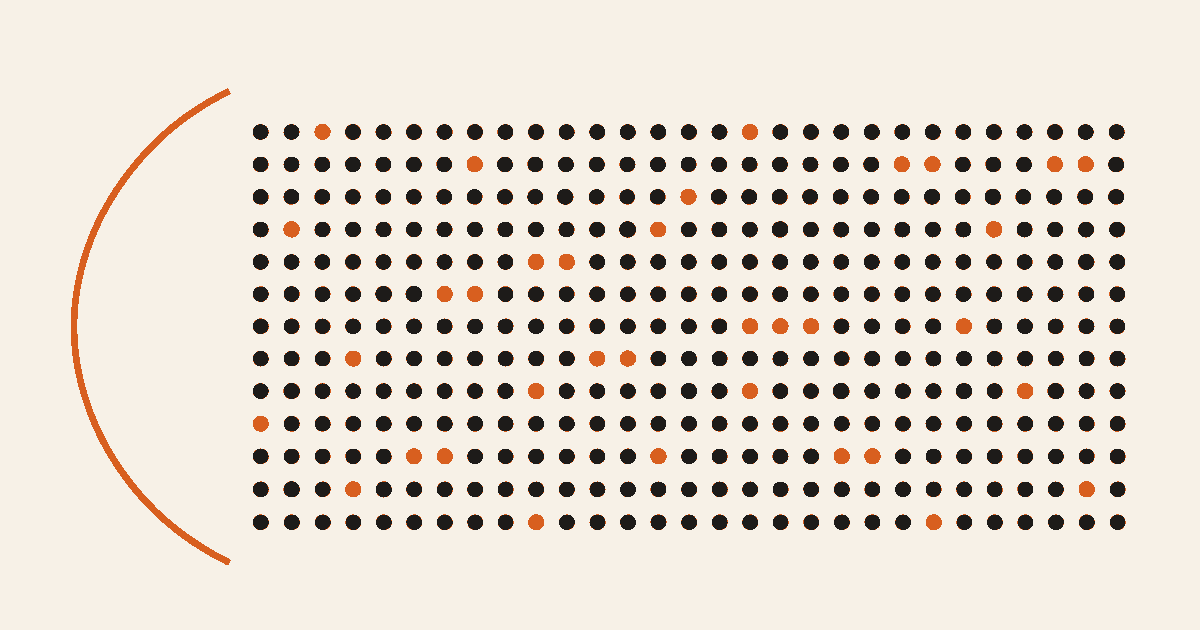
A mood tracker wallpaper turns one small daily check-in into a color-coded calendar on your iPhone Lock Screen. In One Dot, choose Bad, Good, or Awesome for a date. Mood mode then colors that day in a month or year grid, so the wallpaper becomes a compact visual record rather than a long journal or clinical score.
This distinction matters: the grid records what you selected. It does not diagnose a condition, measure mental health, infer a cause, or promise that tracking will improve how you feel. Apple offers a more detailed state-of-mind log in Health; One Dot offers a deliberately smaller three-choice visual for a wallpaper.
Key takeaways
- One Dot records one of three mood choices for each selected calendar date: Bad, Good, or Awesome.
- Mood wallpaper can show the current month or current year; the month layout is a Premium option.
- A colored dot reflects your manual entry, not an automatic reading or medical assessment.
- You can replace a mood for a date, and the latest choice becomes that date's wallpaper color.
- The wallpaper is a static generated image between refreshes, even when a Shortcut applies a new version daily.
What does the mood wallpaper actually show?
It shows a calendar grid in which each recorded date uses the color assigned to your selected mood. Dates without a mood remain in the empty-dot style. If current-date highlighting is enabled, today can still be marked before you make an entry.
The Year layout places the current year's days in one dense field. It suits readers who want a broad visual record and enough distance from individual days. The Month layout uses a familiar seven-column calendar and gives each day more space. Month is easier to read at a glance, while Year makes the accumulated pattern the main subject.
This is different from a habit tracker wallpaper. Habit mode answers whether a chosen action was checked in. Mood mode answers which of three feeling labels you selected. A filled habit day should not be interpreted as a good mood, and an unrecorded mood day should not be interpreted as a bad day.
Before you start: choose a simple recording rule
Decide what your daily choice means before the grid fills up. A useful rule is to log your overall impression of the day at roughly the same time, using the same three labels consistently. If you instead log an intense moment, write that rule down for yourself so later dots are not compared as if they meant a whole day.
Apple distinguishes a momentary emotion from an overall daily mood in its state-of-mind guidance. One Dot does not make that distinction for you. Its choices are intentionally limited, so your own rule provides the context.
Also decide whether the Lock Screen is private enough. A mood color may look abstract to other people, but you know what it means. If displaying it creates pressure, use a neutral theme, hide labels, keep Mood inside the app, or choose a different time-based wallpaper such as Life in Weeks.
Step 1: log today's mood in Journal
Open One Dot's Journal and select the date you want to record. Open the mood picker, then choose the face that best matches your rule:
- Bad for the lowest of the three levels.
- Good for the middle level.
- Awesome for the highest level.
One Dot stores one mood result per date in the journal timeline. If you change your mind and choose another level for that date, the earlier mood choice is replaced while other journal text or photos for the day remain separate. You can also select a past date before logging, which is useful for a missed check-in. Avoid reconstructing many old days from memory as if they were contemporaneous observations.
Verification is simple: return to that date and confirm the chosen mood appears in its journal thread.
Step 2: choose Month or Year in Mood mode
Open the wallpaper gallery and choose Mood. Mood is a Premium visual mode. Select the timeline that fits how you want to read the result:
- Month for a calendar-shaped view of the current month.
- Year for one dot per day across the current year.
Then adjust the theme, dot shape, size, spacing, placement, opacity, labels, and background as needed. Keep the clock, widgets, notification area, and bottom controls in mind. A beautiful grid inside the editor can become hard to read after iOS crops the image or places system elements above it.
Use the preview to confirm three things: recorded dates have the expected mood colors, empty dates remain visually distinct, and today's position is understandable. The grid is a record, not a scorecard, so there is no need to maximize one color.
Step 3: generate and test one wallpaper manually
Save or generate the wallpaper, then apply it to a Photo Lock Screen. Apple's wallpaper instructions explain how to add a photo, crop it, and customize the clock and widgets.
Test the real Lock Screen before setting up automation:
- Wake the phone and check contrast around the clock and widgets.
- Open notifications to see whether the grid still reads clearly.
- Check both light and dark photos if your design uses a personal background.
- Confirm no journal text, names, or private details appear in the generated image.
Mood dots are the intended data in this view. One Dot does not place your journal text into the Mood grid. Keep the design sparse enough that three mood colors remain distinguishable without turning the Lock Screen into a dense dashboard.
Step 4: refresh the static image with Shortcuts
Once manual generation works, follow the One Dot setup guide and the detailed automatic wallpaper guide. Apple documents how to create a personal automation and choose a daily Time of Day trigger.
Run the Shortcut manually first, approve required permissions, and verify that it targets the intended Photo Lock Screen. Then schedule it after the time you normally log your mood. If the automation runs before your entry, the image may not show that day's choice until the next successful refresh.
The result is still a static image. It does not change immediately when you tap a mood unless you generate or refresh the wallpaper afterward. If a Shortcut fails, the previous image remains visible; your mood entry is not proof that a new wallpaper was applied.
Read the grid without over-interpreting it
Treat the wallpaper as a memory cue. A run of similar colors may prompt you to open the journal and recall what happened, but the dots alone cannot establish why you felt a certain way. They do not control for sleep, work, health, relationships, medication, weather, or any other factor. Correlation and diagnosis are outside this wallpaper's purpose.
For more detailed reflection, use your journal notes or Apple's Health tools separately. If you are worried about your mental health or safety, contact a qualified professional or appropriate local support; do not use a wallpaper pattern as a substitute for care.
Common mistakes to avoid
Changing the meaning of the labels. If Good means “average” one week and “happy” the next, the colors are difficult to compare. Keep a personal rule.
Treating an empty day as a negative day. Empty means no mood entry was found for that date.
Expecting automatic sensing. One Dot does not read facial expression, messages, Health data, or behavior to choose a mood.
Assuming the wallpaper is live. A mood selection changes stored data; a later generation or Shortcut run changes the image.
Sharing more than intended. Review screenshots before posting them. Even abstract patterns can reveal dates or routines when combined with other context.
Create a calm daily mood record
Choose one recording rule, log a mood, select Month or Year, and verify one manual wallpaper before automating it. Download One Dot from the App Store to create a focused Premium mood tracker wallpaper for your iPhone Lock Screen.