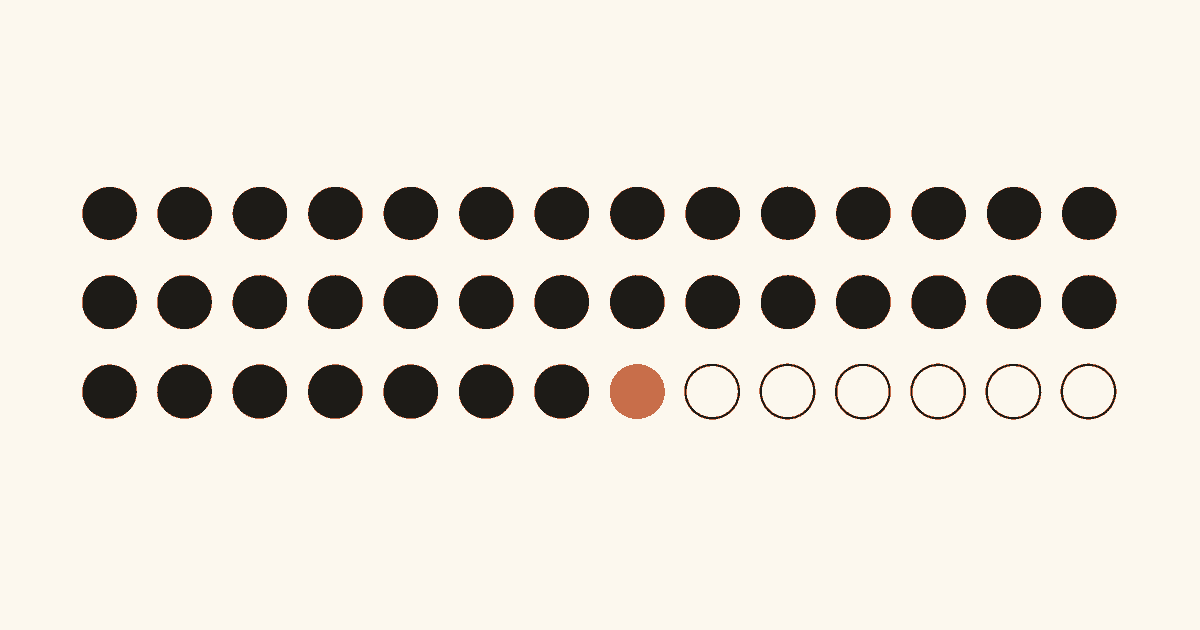
A days since wallpaper can turn a past milestone into a calm visual count-up on your iPhone lock screen. In One Dot, Personal mode uses a start date and an end date to create a bounded day grid. Each daily refresh fills the dots that have elapsed since the start and marks the current position. This is useful for a project, move, course, creative practice, or another date you want to keep visible.
One Dot does not place an open-ended numeric “days since” counter on the wallpaper. Its optional progress line shows days left in the chosen range and the percentage completed. Read the filled dots and current marker as the count-up, and choose an end date that gives the milestone enough room to continue.
Key takeaways
- Personal mode creates a bounded grid between a past start date and a later end date.
- Filled dots show elapsed days, one accent dot marks today, and outlined or empty dots show the rest of the range.
- The wallpaper is a static image between refreshes, not a live timer or tappable tracker.
- Use the habit tracker for recorded check-ins; use this view for calendar time since one milestone.
- Test one manual refresh before scheduling a daily Shortcuts automation.
What does a days-since wallpaper actually show?
The wallpaper shows where today falls inside a date range. One Dot calculates the calendar days between the selected start and end dates, draws one position for each day, fills the elapsed positions, and highlights the current one. The result grows visually as time passes.
That makes it different from a stopwatch. It does not count hours, minutes, or seconds, and it does not change continuously. It also does not confirm that you performed an action on every filled day. If you need a record of completed actions, the habit tracker wallpaper guide explains the check-in based view.
The range also gives the graphic a defined shape. A 30, 100, or 365-day horizon can work, but the number should match your real purpose and the space available on the lock screen. The end date is a visual horizon, not a prediction or promise.
Choose the right view before you start
Count-up, countdown, and habit history answer different questions. Choosing the wrong one creates a wallpaper that looks plausible but communicates the wrong thing.
| Reader task | Best One Dot view | What the image represents |
|---|---|---|
| How much time has passed since one date? | Personal range with a past start | Elapsed calendar days inside a chosen horizon |
| How much time remains until an event? | Personal range ending on the event | Elapsed and remaining parts of a countdown |
| On which days did I complete an action? | Habit tracker | Saved check-ins, not automatic calendar time |
For a future event, use the countdown wallpaper day-counter guide. Keeping that intent separate prevents this article from competing with the generic countdown page.
Step 1: Pick one unambiguous start date
Use the date when the milestone actually began. Good examples include the first day of a course, the day you moved, a product launch, or the start of a defined creative project. If the date is uncertain, check the source you trust before building the wallpaper.
Decide whether your wording should be private. A lock screen can be visible to people nearby, so “Project” may be better than a sensitive personal label. The image should help you orient yourself without exposing information you would not put on a desk.
Avoid using the wallpaper as proof of a streak. Calendar time continues automatically even when no action was completed. For a reading, exercise, or study record that depends on actual completion, use check-ins instead.
Step 2: Build a bounded Personal range
Open the One Dot wallpaper generator, choose Personal, and set the start date to the milestone. Personal mode is a Premium view. Then choose an end date far enough in the future to keep the visual count-up useful.
Use a range with a clear meaning:
- 30 days works for a short experiment or focused sprint.
- 100 days gives a compact milestone grid with an obvious finish.
- 365 days suits a first-year view when the grid remains readable.
- A project end date works when the start and finish both matter.
Add a short title only when it improves recognition. Keep Show Progress Stats off if “days left” would distract from the days-since intent. If you keep it on, interpret the number as days remaining to the end date, not days elapsed since the start.
Step 3: Make today easy to find
Use strong contrast between elapsed, current, and future dots. A restrained palette works well because the current marker needs only one accent color. Keep the grid away from the clock, widgets, notifications, flashlight, and camera controls.
Preview the full wallpaper, then inspect it on the actual lock screen. Apple’s iPhone wallpaper guide explains how to add and switch wallpapers. The final crop can differ from a clean editor preview, so verify that today remains visible and the title is not hidden.
Numbered dots can make the current position easier to read, but a dense year-long range may be clearer without labels. Choose the smallest amount of information that still answers “where am I in this range?”
Step 4: Refresh the image once per day
The wallpaper remains static until it is refreshed. Follow the One Dot setup guide, run the Shortcut manually, and confirm that it produces the expected image and applies it to the intended Photo lock screen. A successful manual run is the cleanest checkpoint before automation.
Next, create a Time of Day personal automation. Apple documents how to add a personal automation and how event triggers in Shortcuts behave. The automatic iPhone wallpaper guide covers the One Dot workflow and common permission problems.
Choose one predictable daily time. After the automation runs, the new image reflects that day’s position. It will not tick forward at midnight unless a Shortcut runs and applies a newly generated image.
How should you read the first day?
Date counters can treat the starting date as day zero or day one. One Dot’s purpose here is visual progress inside the selected range, so confirm the behavior in the preview instead of assuming a convention from another counter app. Check three points: the chosen start date, today’s highlighted position, and the selected end date.
This check matters most when a formal anniversary or exact reported total depends on inclusive counting. For ordinary visual orientation, consistent daily movement is usually more important than the label attached to the first dot.
Common mistakes to avoid
Using a past date with no meaningful horizon. Personal mode requires an end date because it draws a finite grid. Pick a horizon that matches the story you want the image to tell.
Reading “days left” as “days since.” The optional statistic describes the remaining part of the range. The filled dots and current marker carry the count-up meaning.
Calling the wallpaper live. It is a generated image. It changes only after a manual or automated refresh.
Treating elapsed time as completed behavior. A calendar advances whether or not you acted. Use the habit view when evidence of check-ins matters.
Frequently asked questions
Can One Dot show a large numeric days-since total?
Not as a dedicated open-ended statistic. Personal mode visualizes elapsed days as filled dots within a start and end range. Its optional numeric line reports days left and percentage completed.
Can the wallpaper track more than one milestone?
The clearest setup uses one main Personal range. Special dates can add markers inside that range, but they do not create multiple independent days-since counters.
Does the wallpaper update without Shortcuts?
No. Save or generate the image manually, or configure a user-controlled Shortcut automation for regular refreshes. Between runs, the wallpaper stays unchanged.
Keep the count-up honest and quiet
Choose one verified start date, give it a sensible future horizon, and let the dot grid show elapsed calendar time without pretending to be a live timer or behavior record. For other visual time formats, browse the One Dot blog.
Download One Dot from the App Store to create a bounded days-since wallpaper for your iPhone lock screen.