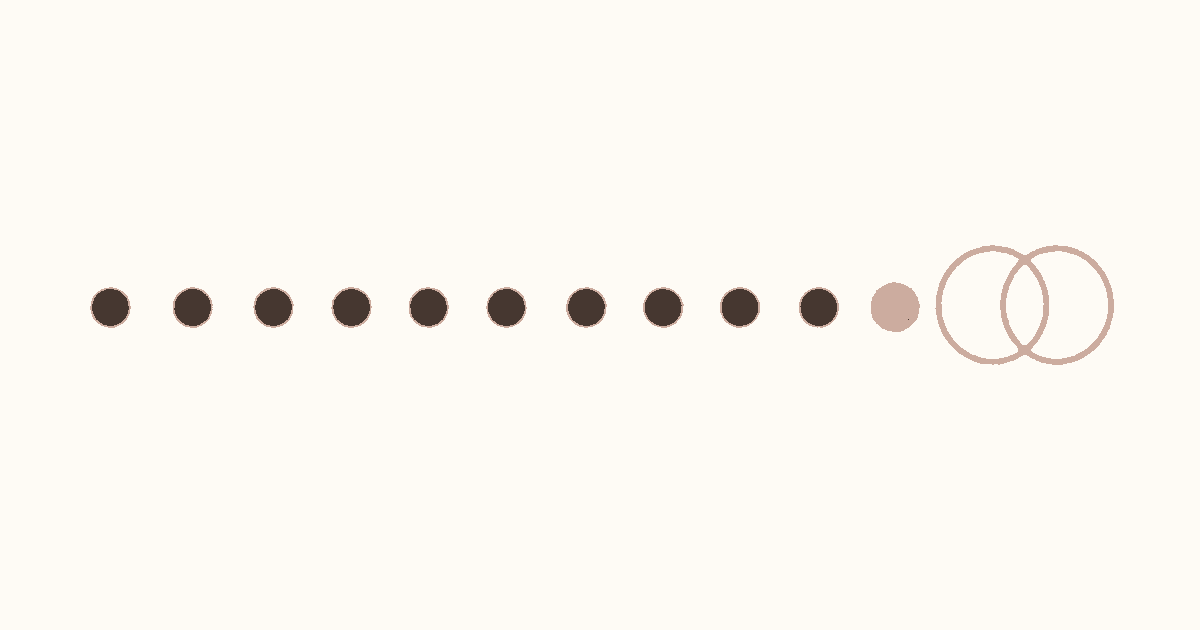
A wedding countdown wallpaper keeps one confirmed ceremony date visible on your iPhone Lock Screen. In One Dot, choose Countdown mode, set a meaningful start date and the wedding date, then use a daily Shortcuts automation to apply a newly generated image. The result is a quiet visual answer to “how many days until the wedding?” without turning the Lock Screen into a planning dashboard.
This guide covers the ceremony-specific choices. For other deadlines and events, use the complete countdown wallpaper guide.
Key takeaways
- Use the date on which your ceremony will actually happen, especially when legal, religious, and reception dates differ.
- Countdown mode supports a start date, end date, optional short goal title, dot grid, and progress statistics.
- The wallpaper is a static image between refreshes. It is not a live seconds timer, shared countdown, or interactive wedding planner.
- One Dot does not manage guests, vendors, budgets, invitations, seating, or schedule changes.
- Test one generated image and one manual Shortcut run before scheduling daily updates.
What should a wedding countdown wallpaper show?
A useful wedding countdown should show one time horizon: the days leading to the ceremony you chose. One Dot draws the saved range as a grid of days. Past days fill in, the current day can use an accent, and future days remain open or quieter. Optional progress statistics can add a numeric view of the same range.
Keep planning data elsewhere. A Lock Screen is easy for other people to see, and One Dot is not a guest-list, supplier, budget, RSVP, or seating-plan tool. Use the wallpaper as a visual day counter, not as proof that preparations are complete.
That narrow purpose also avoids keyword overlap. The pillar explains general countdown and day-counter wallpaper formats, while the days-since wallpaper guide fits anniversaries after the ceremony.
Before you begin
Prepare four things:
- the confirmed local calendar date of the ceremony you want to count toward;
- a meaningful start date, such as today, the engagement date, or a planning milestone;
- an optional short title, such as “OUR DAY” or initials;
- a Photo-based iPhone Lock Screen if you want Shortcuts to replace its image.
Apple explains how to add a photo and customize the Lock Screen in its iPhone wallpaper guide. Avoid full names, venue addresses, access codes, booking references, and private schedule details in the title or background.
Step 1: Choose the wedding date the dots should reach
Set the end date to the ceremony you mean by “wedding day.” Couples may have a civil signing, religious ceremony, reception, or destination celebration on different dates. Pick one endpoint and use it consistently so both the label and dot grid have a clear meaning.
For a destination wedding, keep travel separate unless the journey itself is the milestone you want to see. The vacation countdown wallpaper guide explains how to count toward departure instead of the ceremony.
Use a calendar date rather than an hour. One Dot’s wallpaper grid advances by days and does not tick through hours, minutes, or seconds. Keep the exact ceremony time, venue, and latest schedule in your calendar or wedding documents.
Step 2: Give the countdown an honest starting point
The start date determines what the filled dots represent. Choose today for a clean view from now to the wedding. Choose the engagement date to show the full wait. Choose a planning milestone when you want a shorter, more readable final stretch.
Do not move the start date backward only to create more dots. A longer range makes each day smaller. The best range is one you can describe plainly, such as “from our engagement to the ceremony” or “the final 100 days.”
If two people want matching progress, enter the same start date and end date on both devices, then compare the previews. One Dot does not synchronize a shared wedding countdown between accounts or phones.
Step 3: Build a readable ceremony countdown
Open One Dot, select Countdown, and enter the two dates. Countdown is a Premium mode. Turn on the optional goal title only when a short heading improves the image, then decide whether progress statistics belong on the Lock Screen.
Check the preview before saving:
- the first dot represents the start of your chosen range;
- today appears in the expected position;
- the final position corresponds to the ceremony date;
- the title and dots remain clear around the clock and widgets.
Date counters can differ in how they describe the current day and event day. Use One Dot’s preview as the source for what the wallpaper will show instead of assuming it matches another app’s number.
Step 4: Design for privacy and the real Lock Screen crop
Use strong contrast, one accent color, and enough empty space around the clock, widgets, notifications, and bottom controls. A couple photo can work, but a detailed image may hide small dots. A quiet background keeps the current-day marker easier to find.
Keep the title short and non-sensitive. A lock screen can be seen without opening the phone, so “OUR DAY” reveals less than two full names, a venue, and the exact timetable. The 365-dot year-progress guide uses the same readability principle on a denser grid: decoration only helps when the information survives phone-size viewing.
Save one test image and inspect the actual Lock Screen. The editor preview cannot reproduce every clock style, widget, Focus, notification, or crop.
Step 5: Test one update before automating it
Generate the wallpaper once and confirm that the current position and ceremony endpoint look right. Then follow the One Dot wallpaper setup guide to connect the saved setup to Shortcuts.
Apple describes how to create a personal automation and choose a trigger such as Time of Day. Run the wallpaper shortcut manually first, approve the required actions, and verify that the intended Photo Lock Screen changes.
The dedicated iPhone wallpaper automation guide covers setup and troubleshooting. Schedule daily refresh only after a manual run succeeds. Each run creates and applies a new static image; the wallpaper does not count continuously between runs.
Common wedding countdown mistakes
Counting toward the wrong wedding event. Decide whether the endpoint is the civil ceremony, religious ceremony, reception, or another celebration, then keep that choice consistent.
Putting private details on the Lock Screen. Keep addresses, guest information, supplier contacts, booking references, and access codes in protected planning tools.
Expecting partner sync or planning features. One Dot visualizes saved dates. It does not share a countdown, track RSVPs, manage vendors, or confirm completed tasks.
Expecting a live timer. The wallpaper changes only when a new image is generated and applied. It does not tick through the final hours.
Skipping the manual test. A scheduled automation repeats the shortcut; it does not repair a wrong date, missing permission, expired plan, or unsuitable crop.
What does success look like?
The finished Lock Screen should show one understandable date range, a visible current position, and an endpoint tied to the chosen ceremony. A manual Shortcut run should replace the intended wallpaper, and the next scheduled run should advance the image without changing the saved wedding date.
After the ceremony, retire the countdown or change its purpose. For a bounded anniversary view, switch to a days-since wallpaper rather than leaving an expired countdown active.
Create your wedding countdown
Confirm one ceremony date, choose a meaningful start, keep the title private, and test one refresh before scheduling it. Download One Dot from the App Store to create a focused wedding countdown wallpaper for your iPhone Lock Screen.